Email configuration
How to enable email notifications?
Email notifications and their settings are available only when the active team has the required feature access. If the option is locked, the active team does not have access to this feature.
-
Navigate to the candidate pack of your choice
-
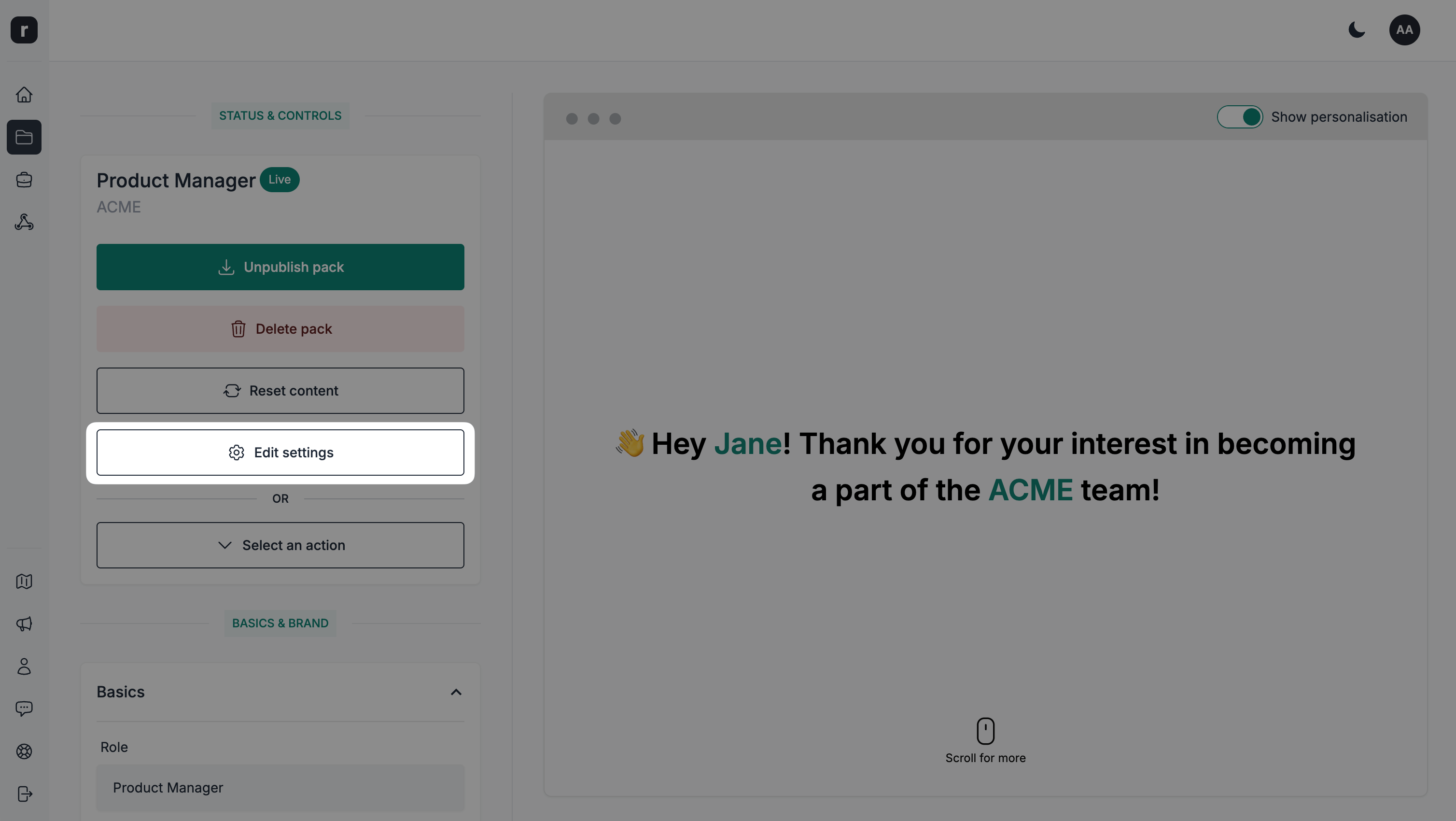
Click the
Edit settingsbutton
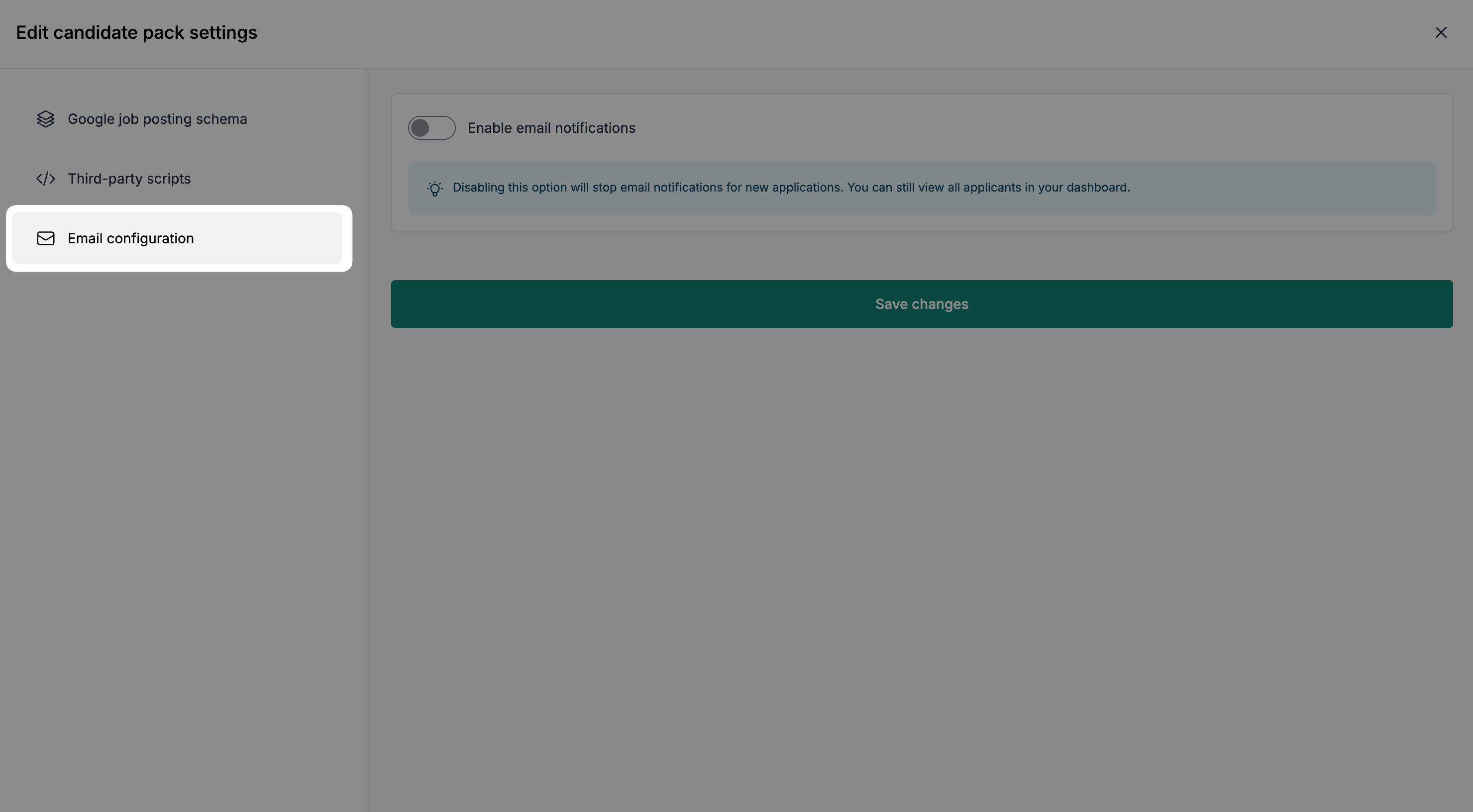
- Click on the
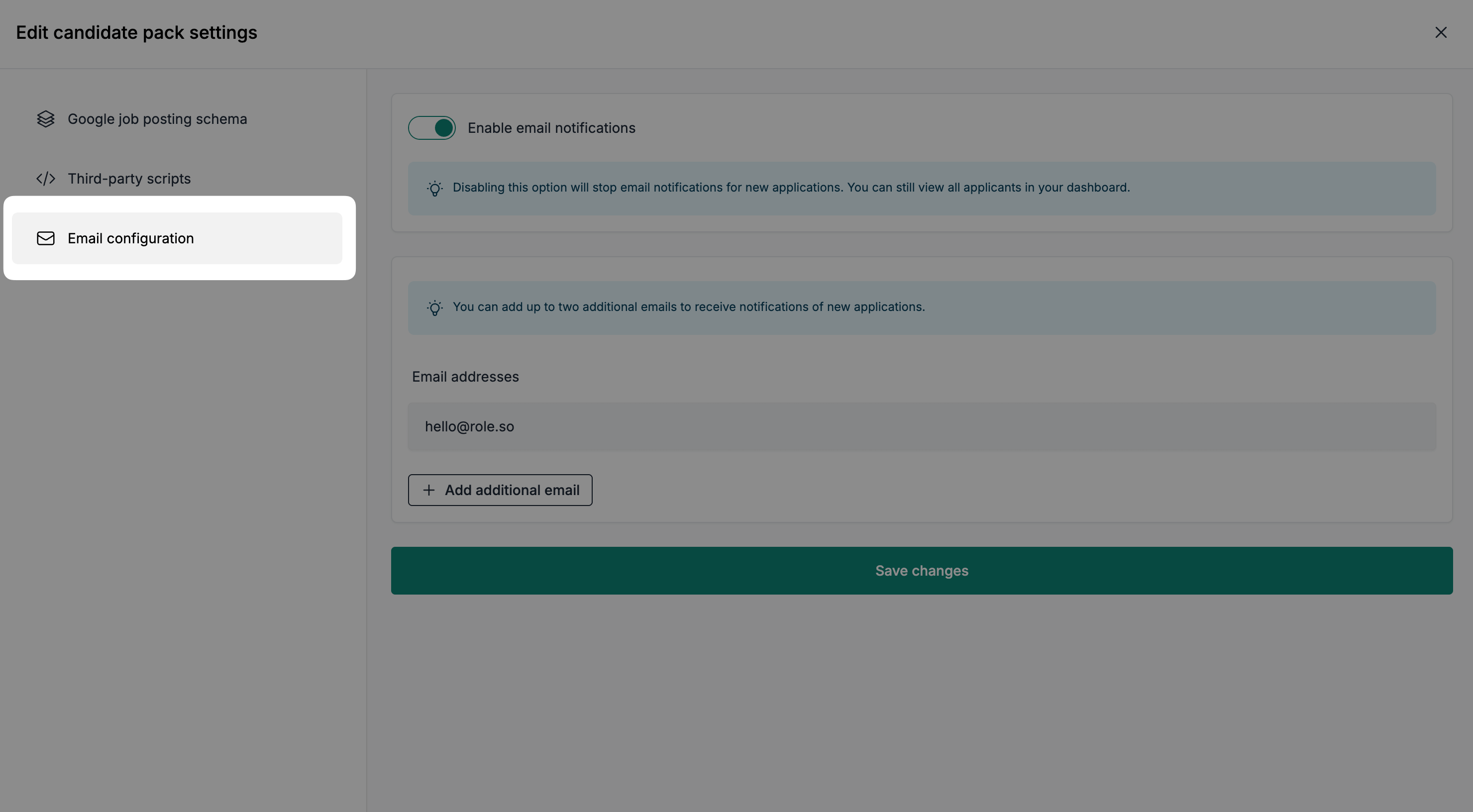
Email configurationtab
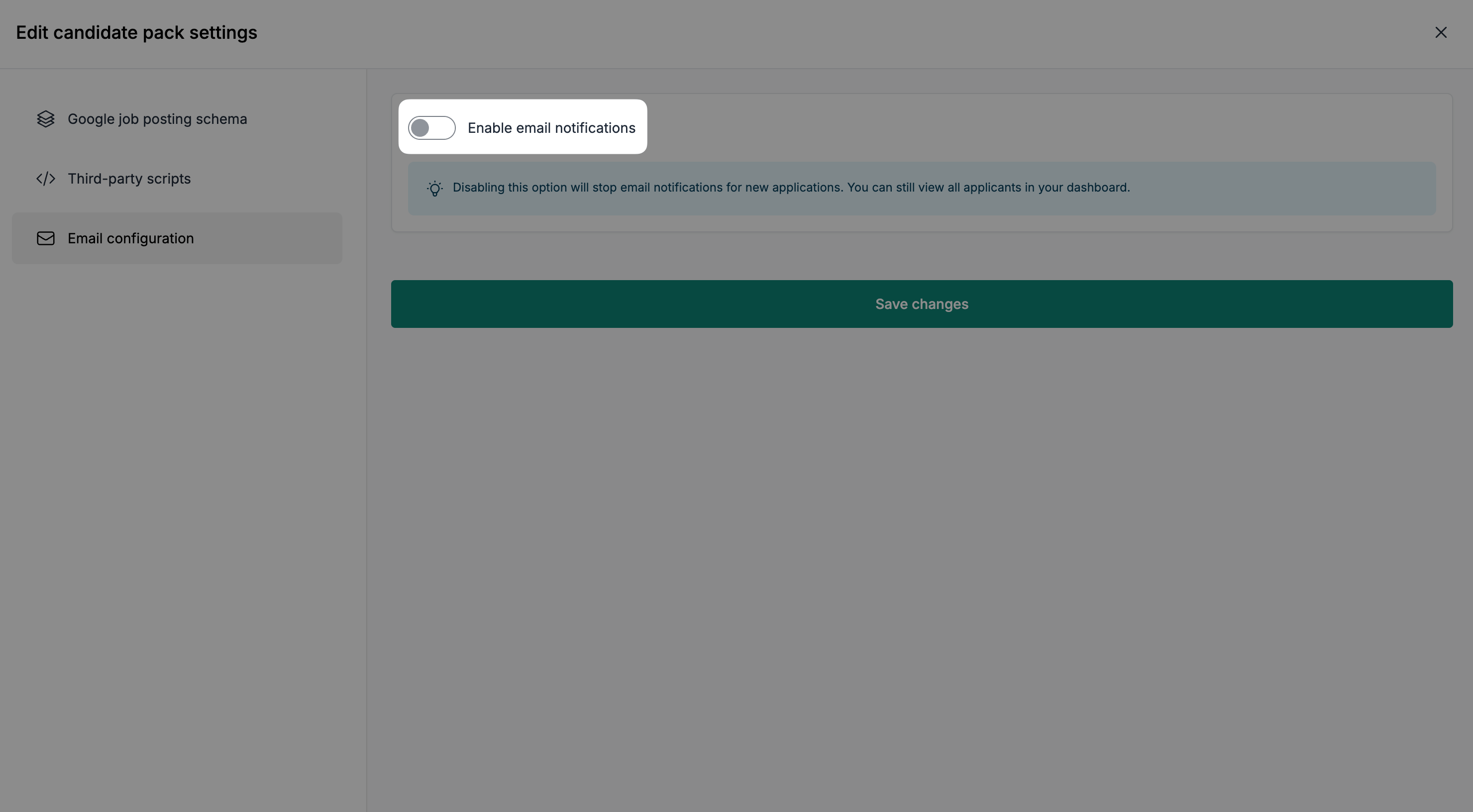
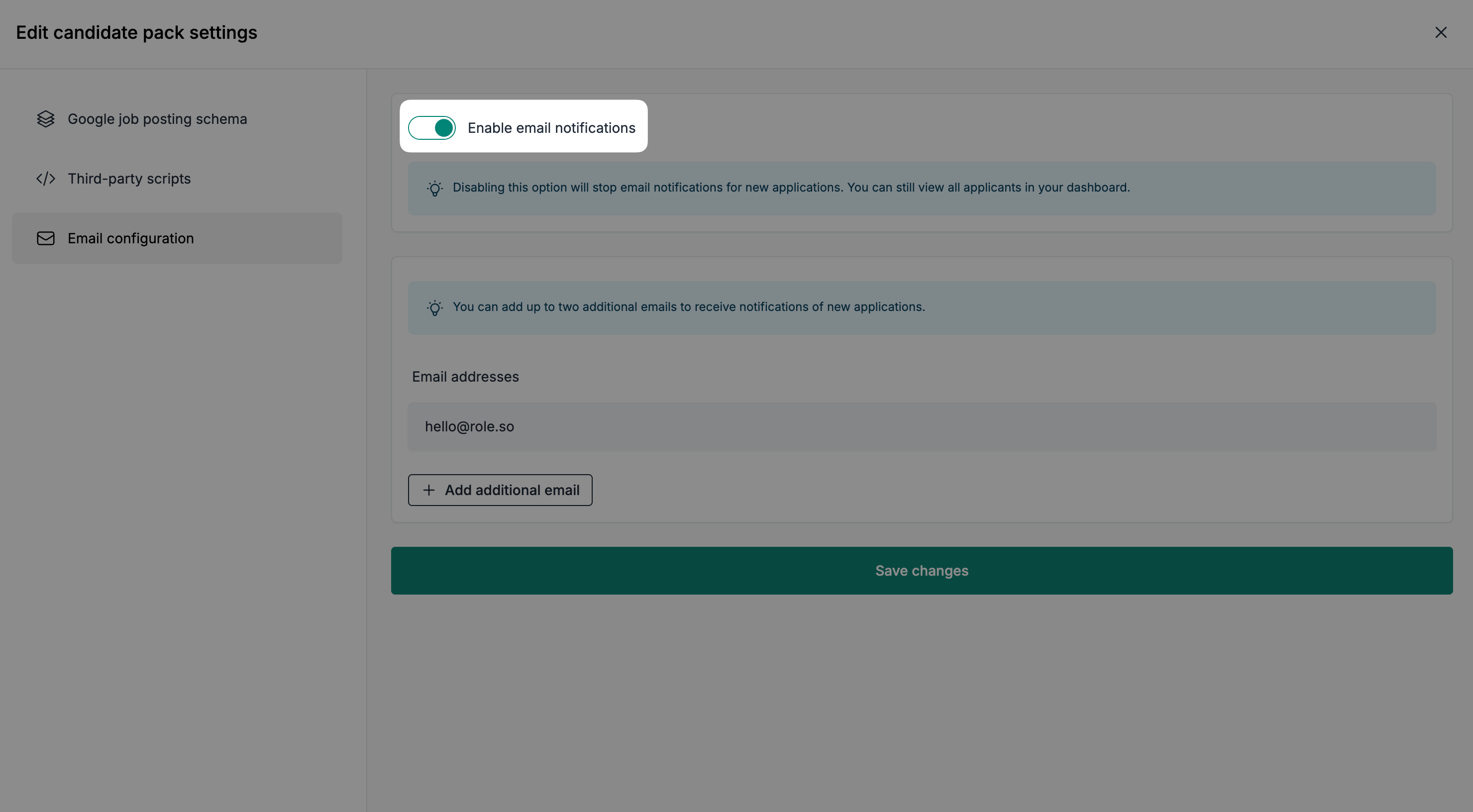
- Enabled the email notification option
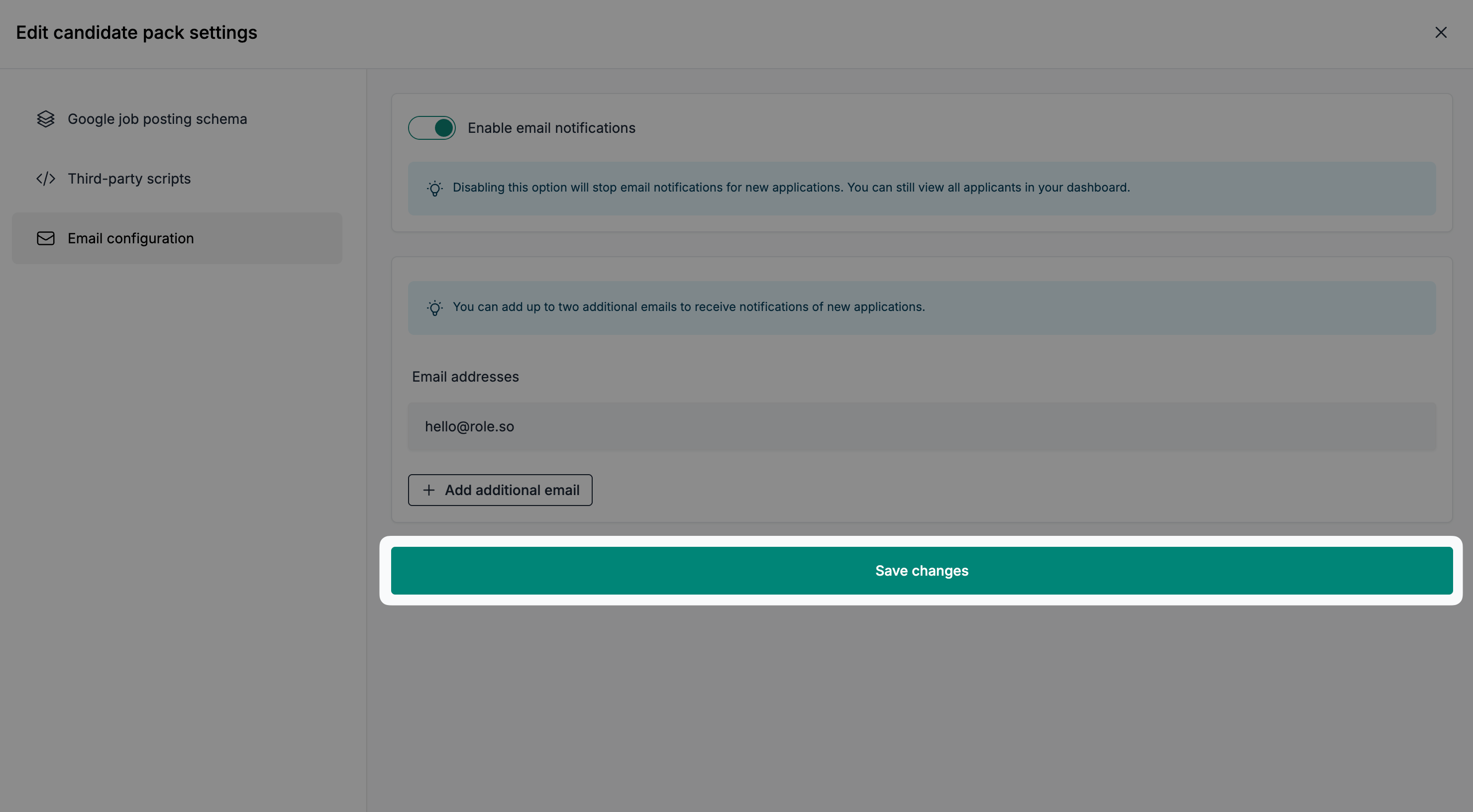
- Click the
Save changesbutton
How to change the main email address?
-
Navigate to the candidate pack of your choice
-
Click the
Edit settingsbutton
- Click on the
Email configurationtab
- Make sure that the email notifications option is enabled
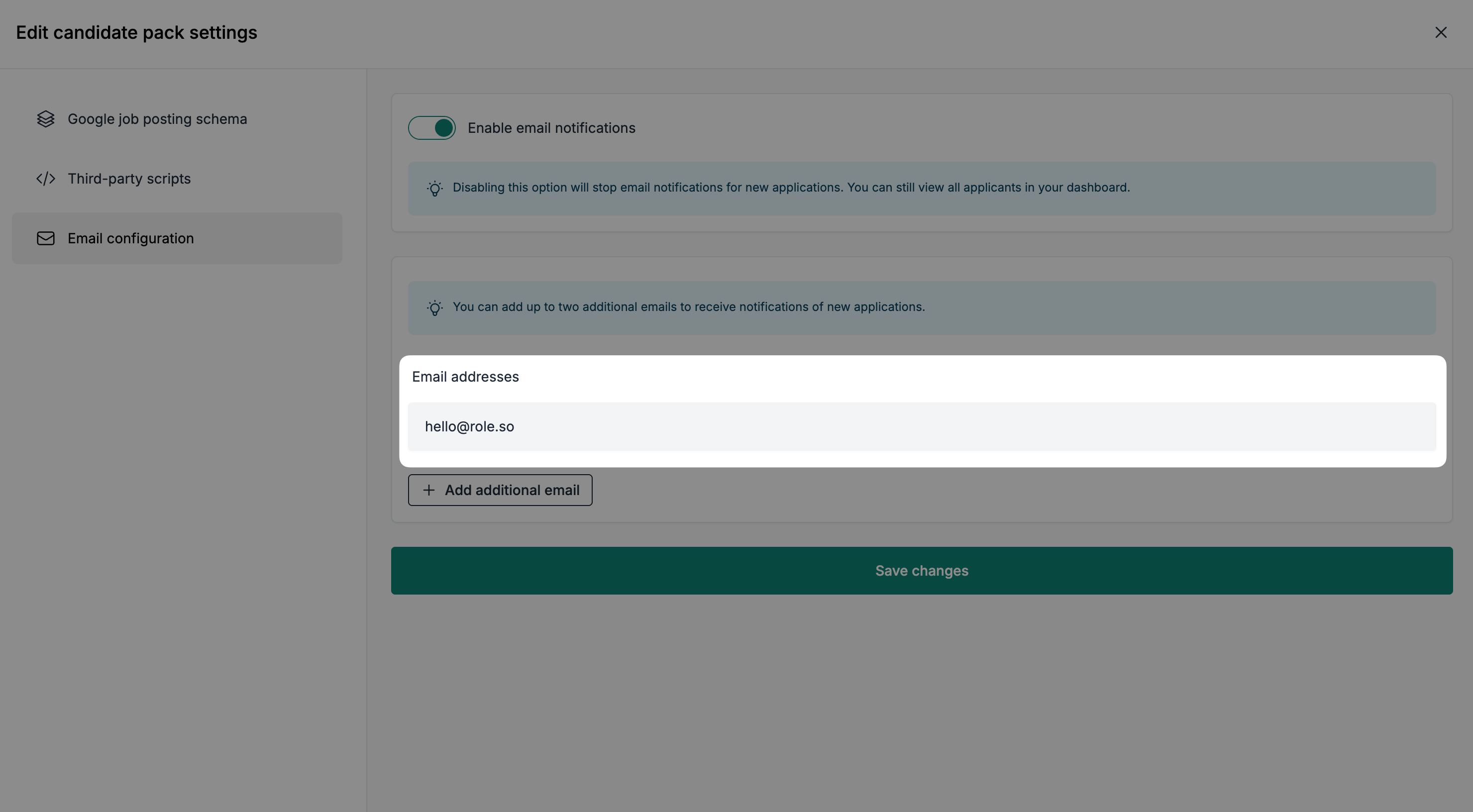
- Edit the main email address of an active team member
- Click the
Save changesbutton
How to add additional emails?
The number of additional recipients depends on your plan:
Starterallows none,Growthallows one, andScaleallows up to four. Historical plans can include 0, 1, or 4 additional recipients, depending on the entitlements attached to your account. The main email address is configured separately. Each email address, including the main and additional addresses, must belong to an active team member.
- Click the
Add additional emailbutton
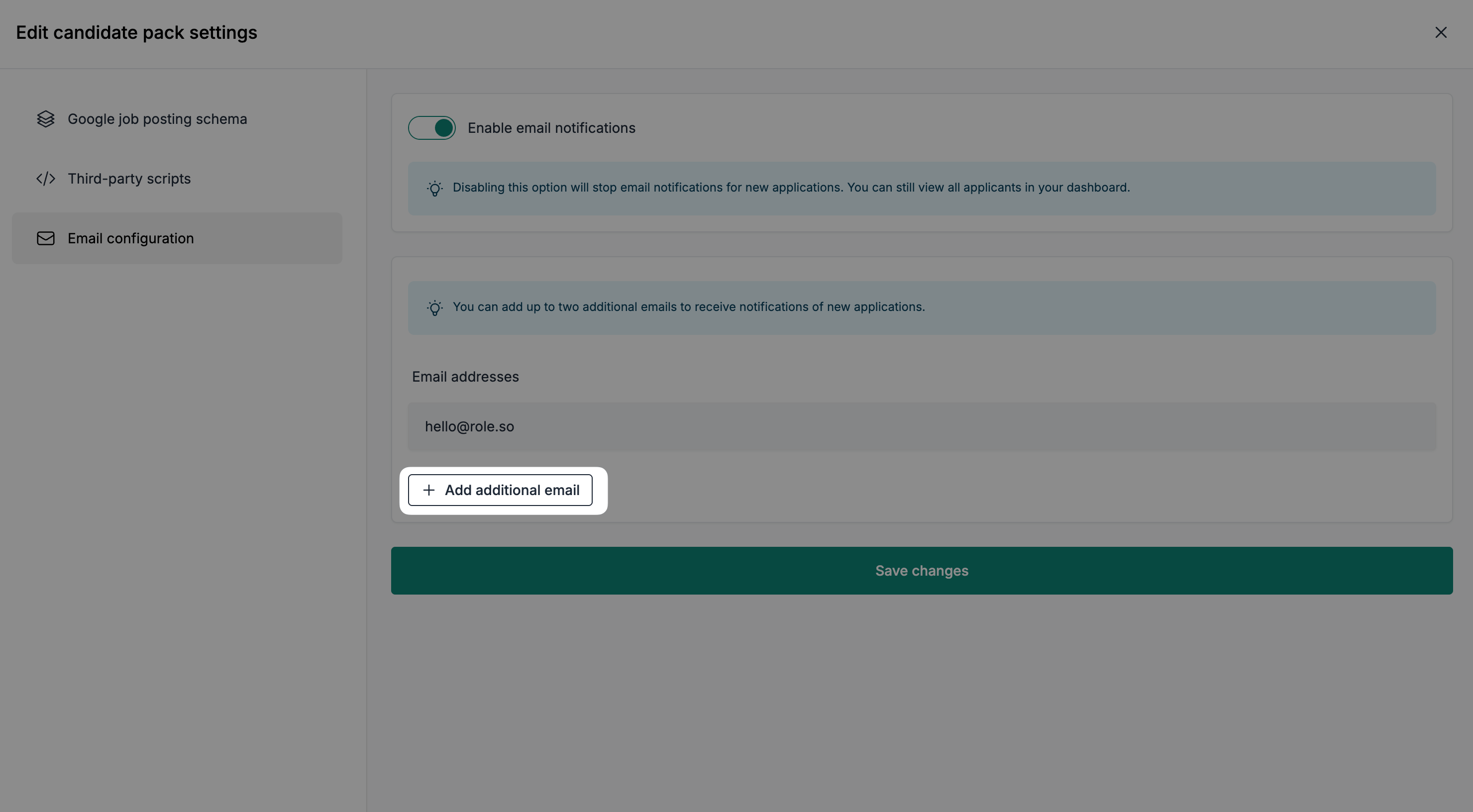
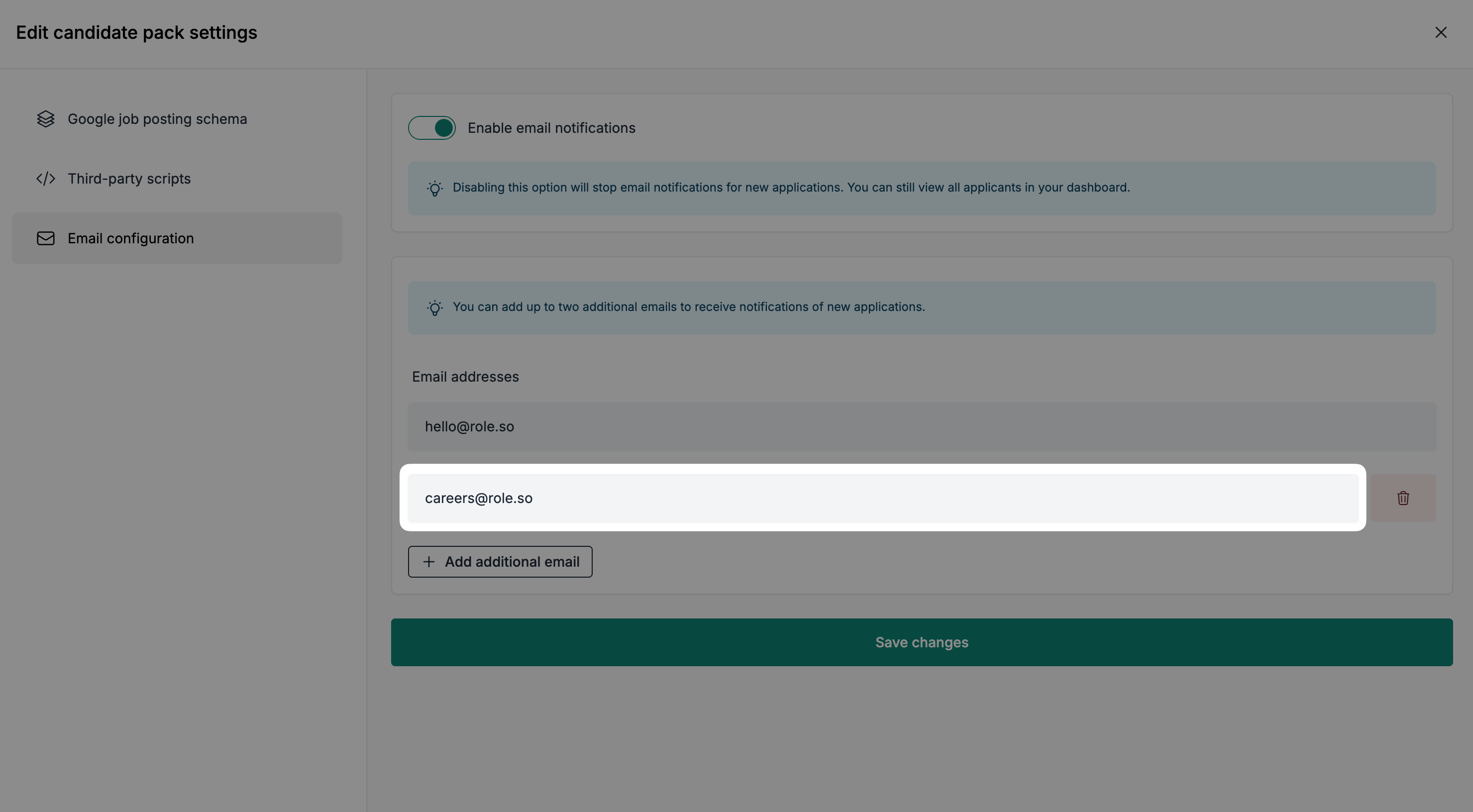
- Enter an additional email address belonging to an active team member
- Click the
Save changesbutton
How to delete an additional email?
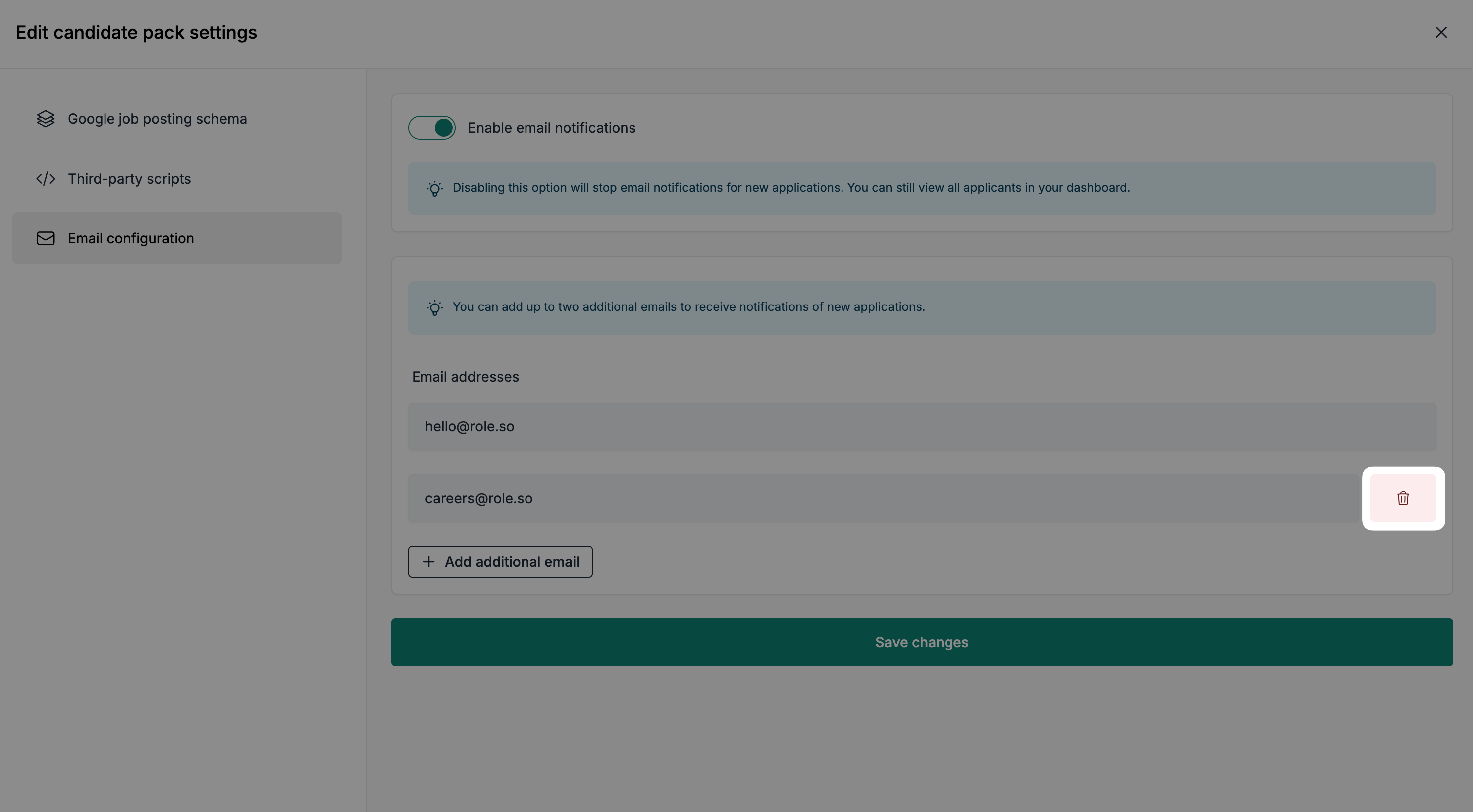
- Click the delete icon, located to the right of the additional email address you'd like to delete
- Click the
Save changesbutton to save the removal.